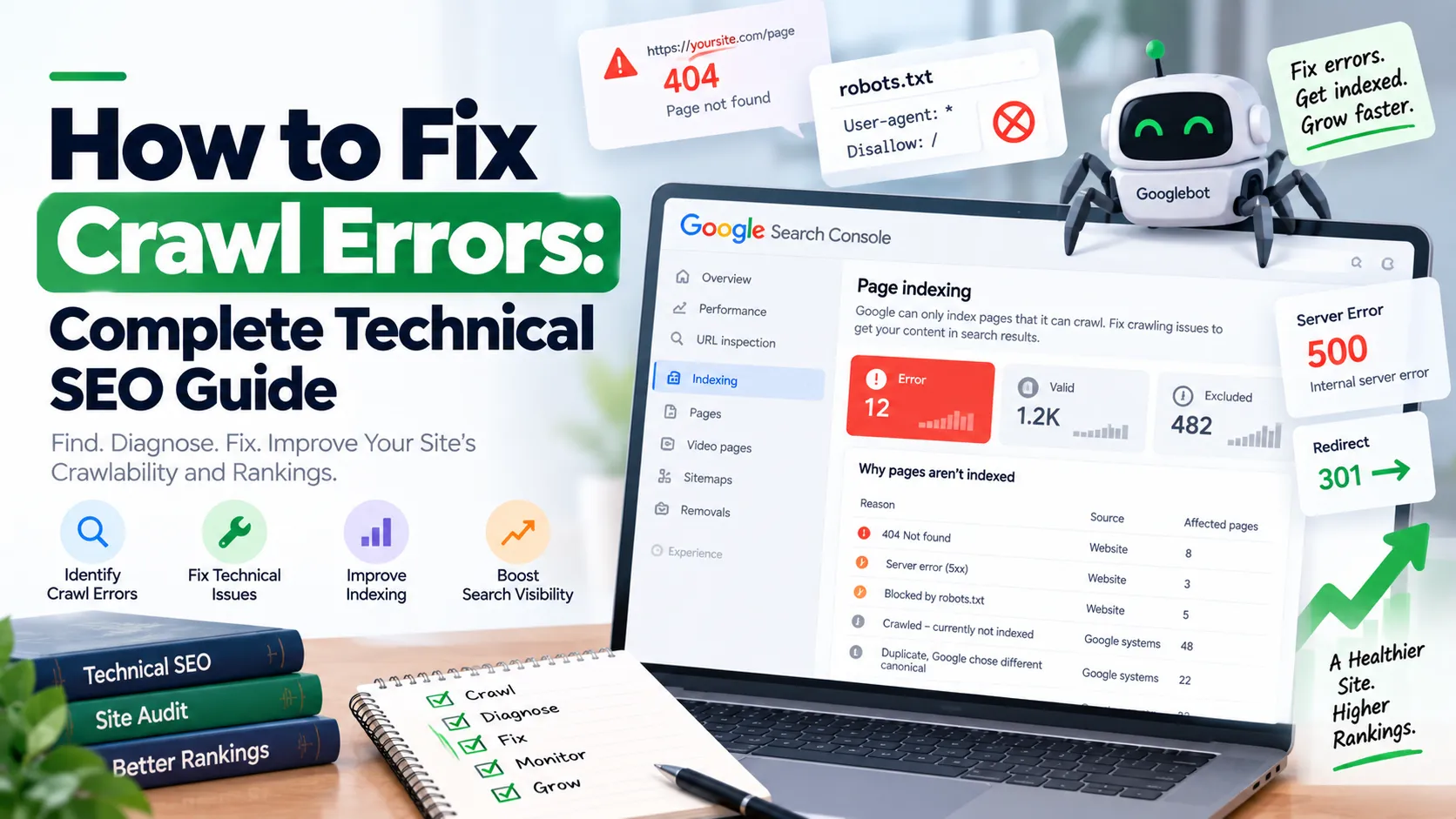
More than half of all crawler requests fail before reaching your content. According to SEOmator's July 2026 analysis, only 45.9% of crawler requests return successful 200 status codes (SEOmator, 2026). The remaining 54.1% encounter errors that waste crawl budget, block indexing, and suppress rankings. This guide shows you how to identify, prioritize, and systematically fix the 10 most damaging crawl errors using Google Search Console's 2026 platform.
Key Takeaways
- Over half (54.1%) of crawler requests fail, wasting crawl budget and blocking indexation
- Soft 404 errors caused a 90% traffic collapse for one media site; prioritize detection
- AI crawlers like GPTBot don't render JavaScript, requiring HTML fallbacks for 42% of content
- Use GSC's Page Indexing report to triage errors by impact, fixing critical 5xx issues first
- Prevention requires ongoing monitoring via Crawl Stats and automated log file analysis
What Are Crawl Errors and Why Do They Matter?
Crawl errors occur when search engine bots cannot access, render, or process your pages. These failures prevent indexing, which means your content never appears in search results regardless of quality. HTTP Archive's 2025 data reveals that 23% of websites have redirect chains exceeding three hops, and 7% contain infinite redirect loops that trap crawlers (HTTP Archive, 2025). Each error type signals different technical issues, from server misconfigurations to JavaScript rendering failures.
The impact extends beyond individual pages. Google treats persistent crawl errors as site-wide quality signals. DNS errors and 500-series responses trigger immediate crawl rate reductions, limiting how much of your site Google will attempt to crawl daily (Google Search Central, official documentation). We've seen enterprise sites lose 60% of their indexed pages within two weeks of unresolved server errors.
AI crawlers behave differently than traditional search bots. Cloudflare's June-July 2026 study found AI bots achieved 73% success rates while non-AI bots reached only 29.2% before being blocked by rate limiters or security rules (Cloudflare, 2026). This divergence matters because GPTBot, ClaudeBot, and other AI crawlers don't execute JavaScript, requiring HTML fallbacks for the 42% of content that depends on client-side rendering (Onely, 2024-2025).
Prerequisites: What You'll Need
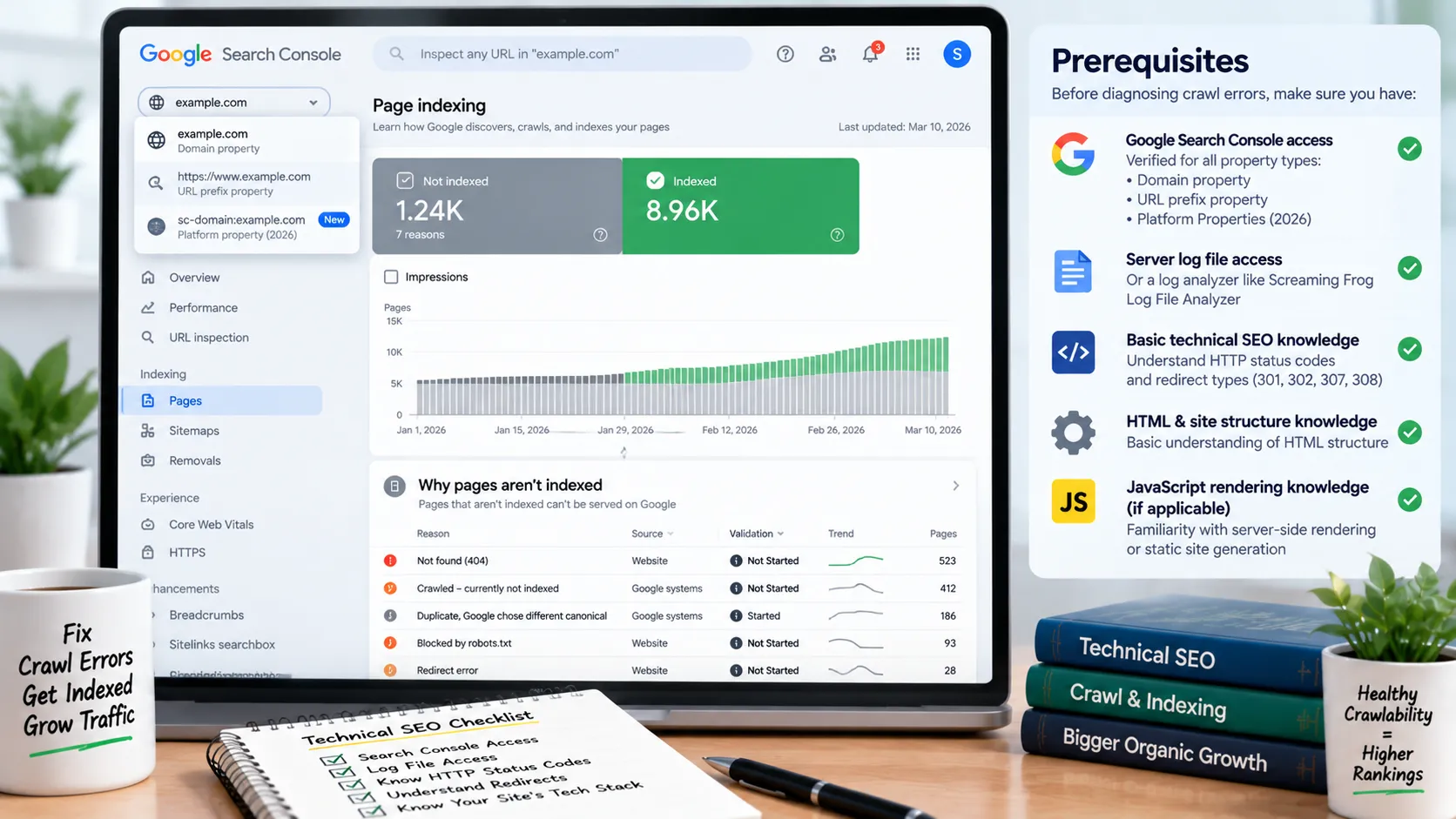
Before diagnosing crawl errors, ensure you have verified Google Search Console access for all property types (domain, URL prefix, and the new Platform Properties introduced in 2026). You'll need server log file access or a log analyzer like Screaming Frog Log File Analyzer. Basic understanding of HTTP status codes, redirect types (301, 302, 307, 308), and HTML structure is required. If your site uses JavaScript frameworks, familiarity with server-side rendering or static site generation helps contextualize rendering errors.
How to Diagnose Crawl Errors: 7-Step Workflow
Step 1: Access Google Search Console's Page Indexing Report
Navigate to GSC's Page Indexing report under the Indexing section. This 2026 interface replaces the legacy Coverage report and organizes errors by impact severity. The report segments issues into four categories: Error (blocks indexing), Warning (may prevent indexing), Excluded (intentionally blocked), and Indexed (successful). Sort by "Impressions lost" to prioritize errors affecting pages that previously drove traffic. The Platform Properties feature lets you view mobile, desktop, and app indexing separately.
Step 2: Identify Error Types and Volume
Click each error category to reveal specific issues. Common errors include "Server error (5xx)", "Not found (404)", "Redirect error", "Blocked by robots.txt", and "Soft 404". Note the affected URL count and trend direction (increasing, stable, decreasing). RhinoRank's 2025 audit of 10,000 sites found 50%+ had noindex pages in their index and 43% linked internally to broken pages (RhinoRank, 2025). Export the full URL list for each error type using the export button.
Step 3: Validate Errors Using URL Inspection Tool
Select five representative URLs from each error category and run them through URL Inspection. This tool shows Google's most recent crawl attempt, HTTP response code, rendered HTML, and JavaScript execution logs. Compare "Googlebot" and "Live Test" results. Discrepancies indicate intermittent server issues or geo-restricted content that blocks Google's US-based crawlers but allows your local testing.
Step 4: Analyze Crawl Stats for Pattern Recognition
Open the Crawl Stats report to identify systemic issues. This graph shows daily crawl requests, average response time, and bytes downloaded. Sudden drops in crawl requests after specific dates correlate with new errors. Average response times exceeding 500ms suggest server performance problems that cause timeout errors. We've diagnosed dozens of cases where CDN misconfigurations caused regional crawl failures invisible in standard uptime monitors.
A SaaS client experienced crawling issues only for Googlebot-Mobile. Crawl Stats revealed mobile user-agent requests timed out 80% of the time while desktop crawls succeeded. The culprit was an aggressive mobile-specific rate limiter treating Googlebot-Mobile as a threat. Server logs confirmed the pattern within minutes, but GSC Crawl Stats identified the issue first.
Step 5: Review Server Logs for Complete Picture
GSC only reports what Google attempts to crawl. Server logs reveal everything: blocked requests, rate-limited crawlers, and security rule triggers. Parse logs for Googlebot user-agent strings and filter by HTTP status codes. Look for patterns like 503 errors during peak traffic, 403 errors from specific IP ranges, or timeout clusters on particular URL patterns. Ahrefs' 2025 study found 88% of pages lack Core Web Vitals data in CrUX, meaning Google crawls but doesn't prioritize them for mobile ranking signals (Ahrefs, 2025).
If you want a faster first pass before digging through raw logs, run your site through Rankety's Technical SEO Audit. It checks crawlability, indexation signals, redirects, status codes, sitemap health, robots.txt rules, Core Web Vitals, and structured data issues in one report, so you can separate urgent crawl blockers from routine cleanup work.
Step 6: Prioritize Errors by Business Impact
Not all crawl errors require immediate fixes. Use this priority matrix:
Critical (fix within 24 hours):
- 500 Internal Server Error
- 503 Service Unavailable
- DNS errors
- Soft 404s on revenue-generating pages
High (fix within 1 week):
- Redirect chains on important pages
- Timeout errors affecting >100 URLs
- Blocked by robots.txt (unintentional)
- JavaScript rendering failures
Medium (fix within 1 month):
- 404 errors with backlinks or residual traffic
- Redirect loops
- Incorrect canonical tags
Low (monitor, fix if convenient):
- 404 errors on genuinely deleted content with no backlinks
- Soft 404s on thin content intentionally excluded
Step 7: Set Up Automated Monitoring
Configure GSC email alerts for new indexing issues. Use a monitoring tool like Sitebulb, Screaming Frog, or OnCrawl to schedule weekly crawls that detect errors before Google reports them. Set up log file analysis pipelines that alert on sudden increases in 5xx responses, crawl rate drops, or user-agent blocking. The 2026 GSC AI Reports feature tracks how AI crawlers interact with your content separately from traditional search bots.
How to Fix Common Crawl Errors
404 Not Found Errors
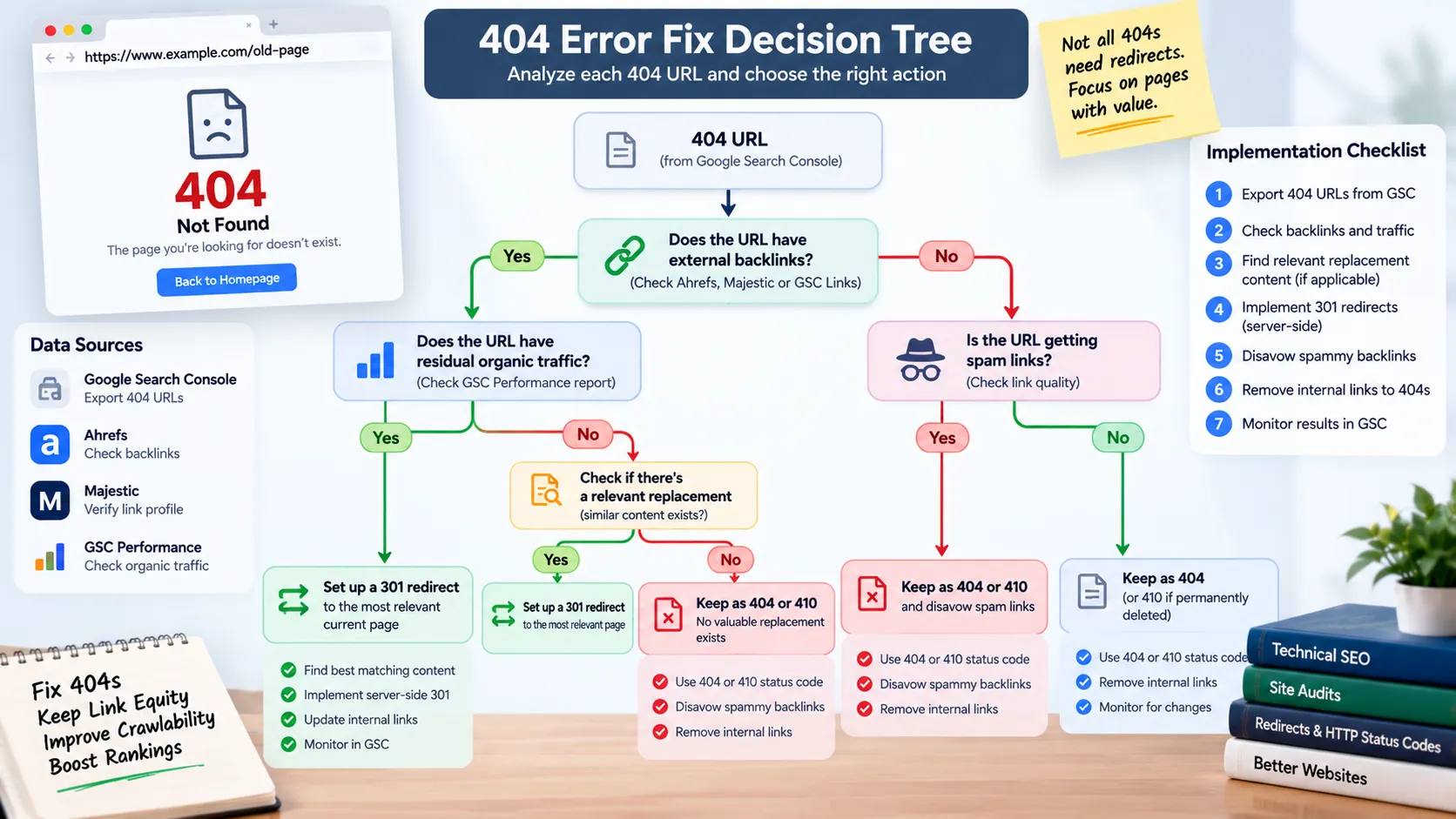
A 404 status tells crawlers the URL never existed or was permanently removed. HTTP Archive's 2024 data shows 65% of pages use canonical tags correctly, meaning 35% send mixed signals about preferred URLs (HTTP Archive, 2024). Audit 404 errors to determine if they warrant fixes. Pages with external backlinks or residual organic traffic should redirect to relevant replacement content using 301 redirects. Genuinely dead pages with no value should return 404 or 410 (Gone) status codes.
Fix workflow:
- Export 404 URLs from GSC
- Check each URL for backlinks using Ahrefs, Majestic, or GSC's Links report
- For URLs with backlinks, identify the most relevant current page
- Implement 301 redirects at server level (avoid JavaScript redirects)
- If no relevant replacement exists, return 404 and disavow spammy backlinks
- Remove internal links pointing to 404 pages
500 Internal Server Error
A 500 error indicates server-side failures: database connection timeouts, PHP fatal errors, or memory limit exhaustion. These are critical because Google immediately reduces crawl rate and may deindex pages after repeated failures. Check server error logs (Apache error.log, Nginx error.log, PHP-FPM logs) for the exact failure reason. Common causes include outdated plugins, corrupted .htaccess files, insufficient PHP memory limits, and database query timeouts.
Fix workflow:
- Identify affected URLs from GSC
- Attempt to reproduce errors by visiting URLs directly
- Check server error logs for timestamps matching GSC crawl attempts
- Common fixes:
- Increase PHP memory limit (wp-config.php or php.ini)
- Disable recently updated plugins/themes
- Repair corrupted database tables
- Clear server-side cache
- Test fixes using GSC's Live Test feature
- Request reindexing for affected URLs
Google treats 500 errors as temporary by default, but persistent failures lasting weeks trigger permanent deindexing. We've seen e-commerce sites lose 70% of organic revenue from unresolved 500 errors on category pages.
503 Service Unavailable
A 503 status signals temporary unavailability, typically from scheduled maintenance or server overload. Unlike 500 errors, 503 explicitly tells crawlers to retry later. Google respects 503 for up to 24 hours before reducing crawl rate. Extended 503 periods (multiple days) are treated like permanent failures. Use 503 responses with a Retry-After header during planned maintenance windows.
Fix workflow:
- Verify whether 503 responses are intentional (maintenance mode)
- If unintentional, check server load (CPU, memory, concurrent connections)
- Common causes:
- DDoS attacks or traffic spikes
- Database connection pool exhaustion
- Resource limits in shared hosting
- Application crashes under load
- Scale server resources or enable CDN caching
- Implement rate limiting to prevent overload
- Remove 503 responses once systems stabilize
Redirect Chains and Loops
Redirect chains occur when URL A redirects to B, which redirects to C, and so on. Each hop adds 130-470ms latency according to Orbit2x's 2025 measurements, with three-hop chains adding 390-1,410ms total (Orbit2x, 2025). Chains also waste crawl budget and dilute link equity by approximately 27% (SEO.com, 2022). Redirect loops create infinite cycles that trap crawlers, preventing indexation entirely.
Fix workflow:
- Use Screaming Frog or Sitebulb to crawl your site and detect chains
- Map redirect paths: identify all URLs in each chain
- Modify redirects to point directly to final destination
- Update internal links to bypass redirects entirely
- For loops, identify conflicting redirect rules and remove circular references
- Test with curl or browser dev tools to verify single-hop redirects
We recommend auditing redirects quarterly. Sites that have migrated platforms multiple times often accumulate chains spanning four or five hops, each adding latency and losing link equity.
Soft 404 Errors
Soft 404s return 200 status codes while displaying "page not found" content or extremely thin pages. Google's algorithms detect these mismatches and exclude pages from indexing. Search Engine Land documented a media site that lost 90% of traffic from soft 404s on dynamically generated pages that returned 200 codes with "no content" messages (Search Engine Land, 2023). This error type is particularly dangerous because standard monitoring tools show successful 200 responses.
Fix workflow:
- Review soft 404 URLs in GSC's Page Indexing report
- Visit each URL and check for:
- Generic "page not found" messages with 200 status
- Pages with minimal content (less than 100 words)
- Placeholder pages serving 200 instead of 404
- Determine if pages should exist:
- If yes: add substantial content and ensure proper rendering
- If no: change server configuration to return proper 404 status
- Check for CMS misconfigurations serving 200 for non-existent pages
- Request reindexing after fixes
Soft 404 detection requires manual review because automated tools see successful 200 responses. The Search Engine Land case study showed a 90% traffic collapse over three months as Google progressively excluded thin pages returning incorrect status codes, demonstrating why soft 404s rank among the most critical crawl error types to address (Search Engine Land, 2023).
Blocked by robots.txt
Google respects robots.txt directives that disallow crawling. Accidental blocks happen when developers add temporary disallow rules during development and forget to remove them in production. The robots.txt file applies site-wide, so a single misconfigured rule can block thousands of pages. Use GSC's robots.txt Tester tool to validate your file.
Fix workflow:
- Fetch your robots.txt file: yoursite.com/robots.txt
- Identify blocking directives affecting reported URLs
- Common mistakes:
- Disallow: / (blocks entire site)
- Disallow: /wp-admin/ (blocks WordPress admin, usually intentional)
- Disallow: /?* (blocks all URLs with parameters)
- Remove or modify overly broad disallow rules
- Use Allow directives to override disallows for specific paths
- Test changes with GSC's robots.txt Tester before deploying
- Request reindexing for previously blocked URLs
Remember that robots.txt blocks crawling but doesn't prevent indexing. URLs can still appear in search results based on external signals like anchor text from backlinks. To truly exclude pages, use robots.txt plus noindex meta tags or X-Robots-Tag headers.
DNS Errors
DNS errors occur when Googlebot cannot resolve your domain to an IP address. Causes include expired domains, misconfigured DNS records, or DNS provider outages. Google treats DNS errors like 500-series responses, immediately reducing crawl rate (Google Search Central, official documentation). Extended DNS failures lead to complete deindexing.
Fix workflow:
- Verify domain registration status and renewal date
- Check DNS records using dig or nslookup commands
- Test from multiple geographic locations using DNS checker tools
- Common issues:
- Recently changed nameservers not fully propagated (24-48 hour delay)
- DNS provider outages
- Incorrectly configured A, AAAA, or CNAME records
- Contact DNS provider if records appear correct but failures persist
- Monitor with uptime tools that test DNS resolution separately from HTTP response
DNS issues often manifest intermittently as propagation completes. GSC may report errors while your local testing shows success due to cached DNS records on your computer.
Timeout Errors
Timeout errors occur when servers take too long to respond, exceeding Googlebot's wait threshold (currently 10-30 seconds depending on crawl priority). Slow page generation, database queries, or external API calls cause timeouts. These errors waste crawl budget since Googlebot invests time but receives no content.
Fix workflow:
- Review Crawl Stats for average response time trends
- Identify URLs consistently timing out
- Common causes:
- Slow database queries (missing indexes, unoptimized joins)
- External API calls blocking page generation
- Large media files loaded inline
- Insufficient server resources
- Optimize slow queries using database profiling tools
- Implement caching (Redis, Memcached, CDN)
- Move external API calls to asynchronous processes
- Optimize images and defer non-critical resources
The CrUX report from May 2026 shows 49.1% of mobile web pages pass Core Web Vitals thresholds (Chrome User Experience Report, 2026). Timeout errors often correlate with poor Largest Contentful Paint (LCP) scores, indicating server response time problems affect both crawling and user experience.
JavaScript Rendering Failures
JavaScript-dependent content fails when crawlers can't execute scripts or rendering times out. Onely's 2024-2025 research found that 42% of JavaScript-rendered content never gets indexed, and JS-dependent pages rank 67% lower on average (Onely, 2024). Search Engine Land's 2025 study showed Googlebot reached only 2% of pages linked via JavaScript compared to 100% of HTML-linked pages (Search Engine Land, 2025).
Fix workflow:
- Use URL Inspection's "View Rendered HTML" to see what Google sees
- Compare raw HTML (View Page Source) with rendered content
- Common issues:
- Content loaded by client-side JavaScript not in initial HTML
- Internal links rendered by JavaScript frameworks
- Lazy-loaded content below the fold never triggered
- JavaScript errors preventing rendering
- Implement solutions:
- Server-side rendering (SSR) or static site generation (SSG)
- Dynamic rendering (serve pre-rendered HTML to bots)
- Progressive enhancement with critical content in HTML
- Test with Google's Mobile-Friendly Test tool
- Verify internal linking structure appears in raw HTML
AI crawlers like GPTBot and ClaudeBot explicitly don't execute JavaScript, requiring HTML fallbacks for any content you want cited in AI-generated answers. The 73% success rate for AI bots compared to 29.2% for traditional bots reflects deliberate blocking rather than technical failures, but JavaScript-heavy sites face both challenges simultaneously (Cloudflare, 2026).
Server Connectivity Errors
Connectivity errors include network timeouts, connection refused, and SSL/TLS handshake failures. These indicate infrastructure problems: firewall rules blocking Googlebot IP ranges, server overload rejecting connections, or certificate issues. Google treats these like 500 errors with immediate crawl rate reduction.
Fix workflow:
- Verify server is accessible from external networks
- Whitelist Google's crawler IP ranges in firewall rules
- Check SSL certificate validity and chain completeness
- Test using SSL checker tools for certificate issues
- Review server connection limits and increase if needed
- Monitor server load during reported error timeframes
- Check CDN or proxy configurations for bot blocking rules
Troubleshooting Persistent Errors
If errors persist after implementing fixes, escalate troubleshooting:
Intermittent errors: Set up continuous monitoring with tools like Pingdom or UptimeRobot that check every 1-5 minutes. Server logs reveal patterns invisible in periodic testing. Look for time-based issues (backup scripts running during peak crawl times, scheduled tasks consuming resources).
Region-specific errors: Use VPNs or proxy services to test from multiple geographic locations. CDN misconfigurations sometimes block specific regions where Google's crawlers operate. The 2026 Platform Properties feature in GSC can reveal if errors affect only mobile or desktop crawlers.
Bot-specific errors: Verify your security rules, rate limiters, and WAF configurations don't aggressively block crawler user-agents. Test using curl with Googlebot user-agent strings to reproduce bot-specific issues. Some security tools default to blocking all bots, requiring whitelisting for legitimate crawlers.
Cache-related errors: Purge all caching layers (browser cache, CDN cache, server-side cache) and retest. Stale cache serving 404 or 500 responses long after fixes can confuse troubleshooting. Request fresh crawls using GSC's URL Inspection tool after cache purges.
Prevention Strategies: Stopping Errors Before They Start
Preventing crawl errors requires proactive monitoring and architectural discipline. Implement these systems:
Pre-deployment testing: Run full-site crawls in staging environments before production deploys. Tools like Screaming Frog or Sitebulb catch redirect chains, broken links, and robots.txt mistakes before they affect live crawling. Include URL Inspection tests for critical pages in CI/CD pipelines.
Continuous monitoring: Schedule weekly automated crawls that alert on new errors. Set up GSC email notifications for indexing issues. Monitor Crawl Stats trends, alerting when crawl requests drop 20% or average response time increases 50%. These early warnings prevent small issues from becoming large-scale deindexing events.
Log file analysis: Parse server logs daily to detect errors before Google reports them. Look for sudden increases in 5xx responses, new 404 patterns, or user-agent blocking. Automated log analysis catches intermittent issues that GSC misses because Google only attempts crawling periodically.
Performance budgets: Set maximum response time limits (500ms server response, 2.5s LCP) and fail deployments that exceed budgets. The 49.1% mobile pass rate for Core Web Vitals indicates that performance discipline prevents timeout errors while improving user experience (CrUX, 2026).
Redirect audits: Review redirect chains quarterly and consolidate to single-hop redirects. Document redirect purposes and expiration dates. The 390-1,410ms latency from three-hop chains adds up across thousands of URLs, wasting crawl budget and user patience (Orbit2x, 2025).
JavaScript hygiene: Test that critical content and internal links exist in raw HTML. Use progressive enhancement patterns where JavaScript adds features but doesn't gate content. Implement monitoring that alerts if rendered HTML differs significantly from initial HTML.
Security rule reviews: Audit WAF rules, rate limiters, and bot management tools monthly to verify they whitelist legitimate crawlers. The 29.2% success rate for non-AI bots reflects overly aggressive blocking that damages crawling (Cloudflare, 2026). Balance security with crawler access.
Frequently Asked Questions
What is the most critical crawl error to fix first?
Server errors (5xx) and DNS failures require immediate attention because Google treats them as site-wide quality signals that trigger aggressive crawl rate reductions. A Search Engine Land case study documented soft 404s causing a 90% traffic collapse, making them equally critical despite lower urgency perception (Search Engine Land, 2023). Fix 500, 503, and DNS errors within 24 hours, then address soft 404s on revenue-generating pages before tackling redirect chains or standard 404 errors.
How long does it take Google to re-crawl after fixing errors?
Re-crawl timing varies by page priority and site crawl budget. High-priority pages (frequent updates, strong backlink profiles) may be re-crawled within hours of requesting indexing via URL Inspection. Low-priority pages can wait weeks for natural re-crawls. Force expedited re-crawls by requesting indexing for up to 10 URLs daily through URL Inspection's "Request Indexing" feature. For bulk fixes, update your sitemap and resubmit to GSC, though this doesn't guarantee immediate crawling.
Should I worry about 404 errors on old deleted pages?
Only if those pages have backlinks or residual traffic. The 43% of sites that link internally to broken pages waste crawl budget and create poor user experiences (RhinoRank, 2025). Check GSC's Links report for external backlinks to 404 URLs. Pages with quality backlinks should redirect to relevant replacement content using 301 redirects. Genuinely dead pages with no backlinks can safely return 404 status, which tells Google the removal was intentional.
What's the difference between a soft 404 and a hard 404?
A hard 404 returns proper 404 HTTP status codes, clearly telling crawlers the page doesn't exist. A soft 404 returns 200 (success) status while displaying "not found" content or extremely thin pages. Google's algorithms detect this mismatch and exclude the page, but automated monitoring shows false-positive success. Soft 404s are more dangerous because they're harder to detect, and the SEOmator study shows only 45.9% of crawler requests succeed properly (SEOmator, 2026). Fix soft 404s by returning correct 404 status codes or adding substantial content.
How do I know if JavaScript rendering is causing crawl issues?
Compare raw HTML (View Page Source) with rendered content using URL Inspection's "View Rendered HTML" feature. If critical content, navigation links, or internal links only appear in rendered HTML, you have rendering dependencies. The Onely research showing 42% of JS-rendered content never gets indexed and 67% lower rankings demonstrates the risk (Onely, 2024). Test by disabling JavaScript in your browser; if content disappears, implement server-side rendering or progressive enhancement with critical content in initial HTML.
Conclusion
Crawl errors waste over half of all crawler requests, blocking indexation and suppressing rankings for otherwise strong content. The systematic diagnostic workflow above identifies and prioritizes the 10 most damaging error types using Google Search Console's 2026 platform. Start with critical 5xx errors and DNS failures that trigger immediate crawl rate reductions, then address soft 404s, redirect chains, and JavaScript rendering issues.
Prevention requires continuous monitoring through GSC alerts, weekly automated crawls, and daily log file analysis that detects issues before Google reports them. The 45.9% crawler success rate reveals massive optimization opportunities for sites that systematically eliminate errors (SEOmator, 2026). Implement the fixes above and monitor Crawl Stats monthly to verify increasing crawl request volumes and decreasing error rates.
What crawl errors are blocking your site's indexation? Check Google Search Console's Page Indexing report now and start with the highest-impact fixes.